I have recorded my screen for almost everything. I made tutorials and showed people how to do things. So, along the way, I’ve also learned that not all screen recorders are suitable for my laptop. Some put a watermark so big, you’d think it was the sole reason for the recording!
But a watermark isn’t the only issue. Is the video quality good? Are the editing features easy to use? Can you share the video? Is the price justified? Does it work with your device? Do you need it for quick captures or for professional tutorials? We’ll be answering these questions.
This guide compares the best screen recorder software for Windows and Mac, including free built-in options and paid tools. Keep reading!
To find the right screen recorder for your project, look for these key features:
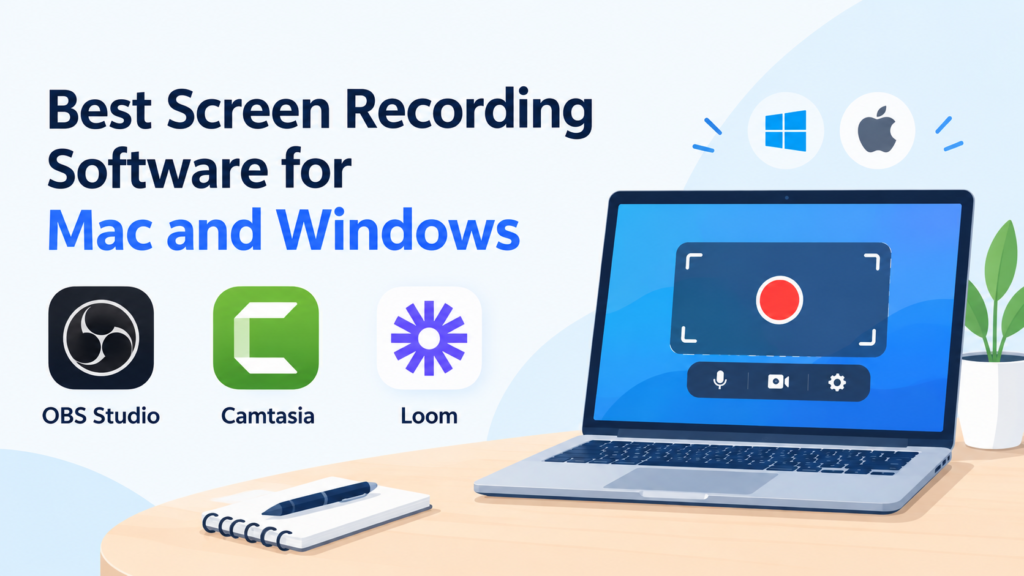
Here are the 3 main software options for Mac and Windows.
My top pick for advanced recording on Windows and Mac is OBS Studio. It has options for scene customization, multiple sources, audio controls, and various other streaming options. I tested OBS with a webcam, microphone, and browser capture, and its biggest advantage was the amount of control it offered. It may seem hard to work with OBS, but once you get the required skills, everything works perfectly.
This tool combines screen recording with video editing. I love that I can capture my screen and edit the video in the same software. It comes with all the essentials—like transitions, annotations, and captions—to keep instructional videos engaging and easy to follow.
Note on security: Head over to TechSmith’s official support site to check for any relevant advisories.
Loom is all about async video. Record your screen or webcam, then share a quick link instead of emailing large files or jumping on a call. I use it all the time for design reviews and process walkthroughs.
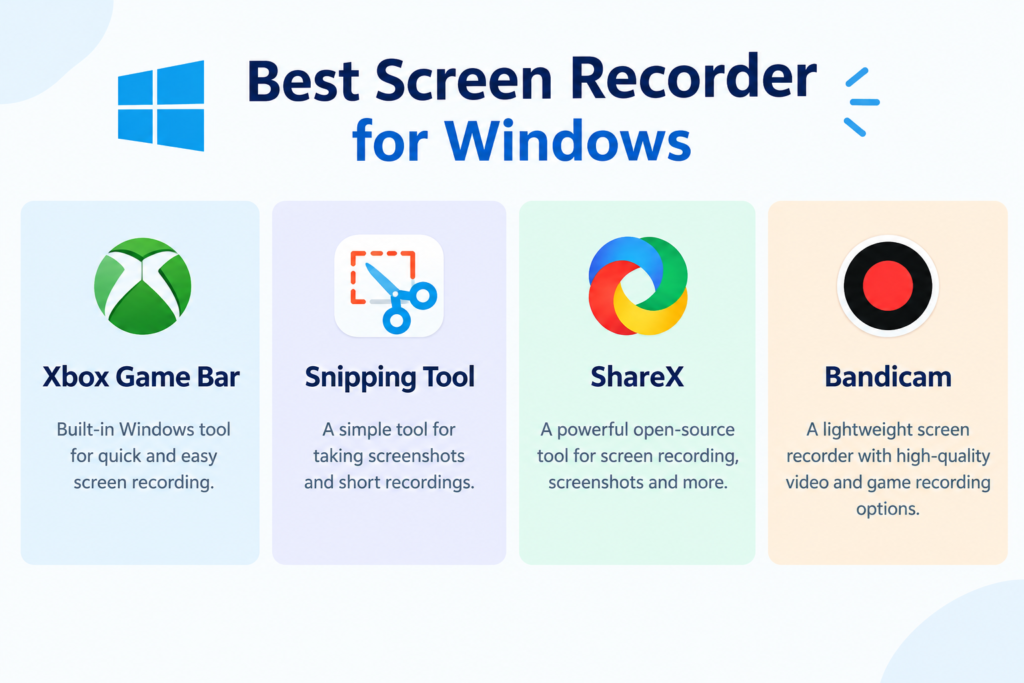
Windows already offers simple recording options, but these tools give you different levels of control depending on your usage demands.
With Xbox Game Bar, I can easily record my game or app without having to install any additional capturing tool. The Xbox Game Bar lets you take control of all your favorite gaming activities while playing on Windows.
If you’re on Windows 11, the built-in Snipping Tool makes it super easy to record any rectangular section of your screen. Just open it up, switch to video mode, frame your area, and hit record. I use it all the time for quick software walkthroughs, showing off a website feature, or dropping a fast clip to a coworker. Also, I greatly appreciate that this tool doesn’t require a separate recording subscription!
A top Choice for free and feature-rich recording for power users. ShareX does much more than screen recording. It allows me to record videos or GIFs, record selected areas, do annotations on screenshots, and much more.
This is excellent software for gamers and anyone who wants a high-quality screen recorder for PC. Bandicam is meant for recording the screen as well as the game, and is good for Windows users who are looking for functions that go beyond simple recording.
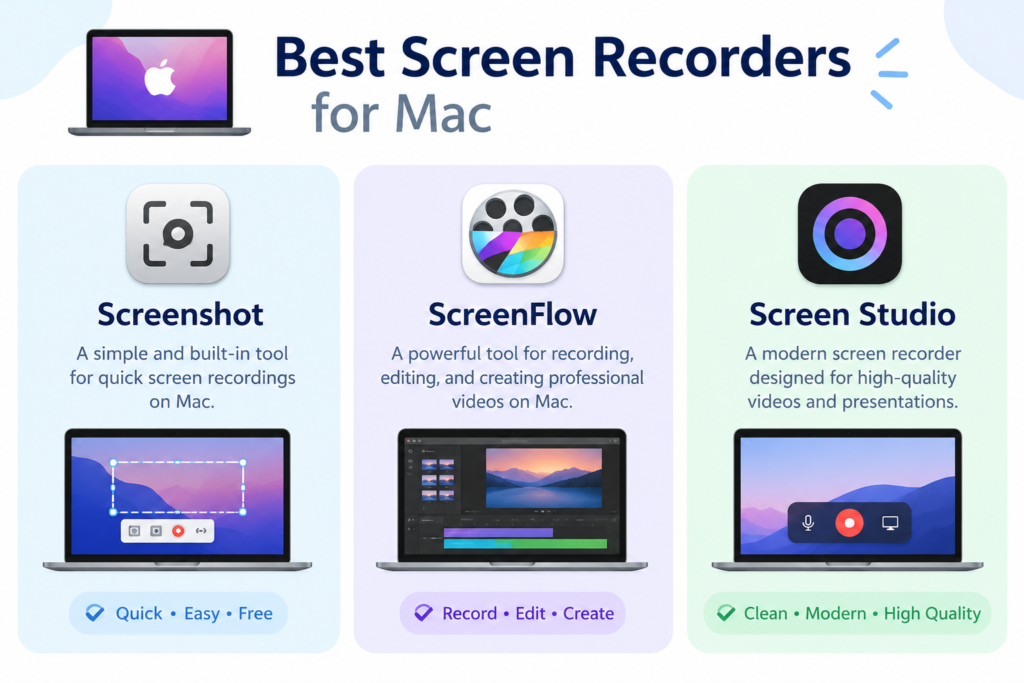
Best Screen Recorder apps for Mac users usually come with easier workflow hacks that add a different look to your clips, from casual to professional.
Mac’s built-in Screenshot tool lets you capture the entire screen, a selected portion, or a window. Providing high resolution, it can also record your screen without extra software downloads.
ScreenFlow keeps things simple for Mac users by combining screen capture and professional editing into a single workflow. It’s ideal if you’re putting together polished tutorials, presentations, or courses.
Screen Studio takes the pain out of editing by automatically making your recordings look slick and professional. With built-in features like smooth cursor movement, custom cursor styles, and automatic zooms, it’s a total game-changer for product demos, startup pitches, and social media clips
Here’s a quick look at user needs and the correct tools to use.
| User need | Recommended tool |
| Best for advanced control | OBS Studio |
| Best for quick screen recording | Snipping Tool |
| Best for easy sharing and collaboration | Loom |
| Best for Mac users | QuickTime Player |
| Best for professional Mac recording | ScreenFlow |
| Best for gamers | Bandicam |
| Best free, feature-rich option | ShareX |
| Best for simple business use | Loom |
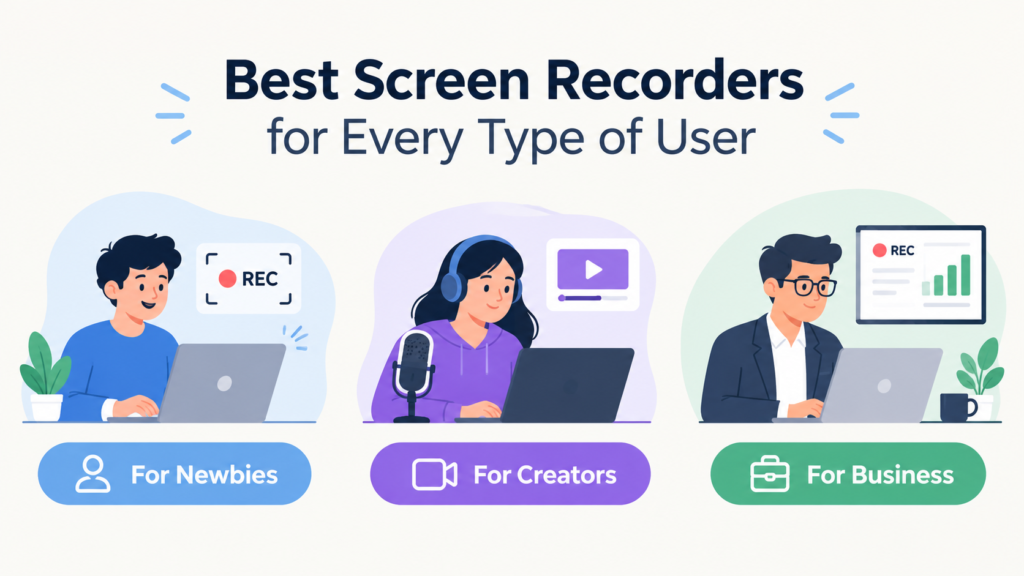
Different users need different features. There’s no single best screen recorder for everyone.
I compared these tools based on setup time, recording quality, webcam support, microphone/system audio controls, editing features, export options, and ease of sharing. Here’s what I found:
| Tool | Best For | Platform | Webcam | Editing | Free Option |
| OBS Studio | Advanced recording and streaming | Windows, Mac, Linux | Camera support | Basic editing | Completely free |
| Loom | Quick sharing and collaboration | Windows, Mac, Web | Camera and microphone | Basic trimming | Free plan available |
| Snipping Tool | Quick screen captures and recordings | Windows | Not supported | Basic annotations | Built into Windows |
| Xbox Game Bar | Gaming and quick recording | Windows | Camera support | Limited editing | Built into Windows |
| ShareX | Advanced screenshots and captures | Windows | Limited | Annotations and effects | Completely free |
| Bandicam | Gaming and high-quality recording | Windows | Camera overlay | Basic editing | Free version with limits |
| QuickTime Player | Simple Mac screen recording | Mac | Camera recording available | Basic trimming | Built into macOS |
| ScreenFlow | Professional recording and editing | Mac | Camera and microphone | Advanced editing | Free trial available |
According to Loom’s LaunchDarkly customer case study, the company saved 523 meetings over 90 days by using asynchronous video for project updates and troubleshooting.
Trying to explain a complex software workflow by typing out every single step feels a lot like that classic, over-complicated lecture scene from 3 Idiots. A quick screen recording cuts through the noise, gets straight to the point, and spares everyone from a tedious read. A short screen recording will demonstrate the topic and also spare everyone from boredom.
Forget about endless feature lists. The right tool is simply the one that simplifies your workflow and gets the job done without any fuss.
If you are interested in technology and follow technical advice regularly, feel free to share your tips at Write For Us: Tech Blog.
ScreenFlow and the default Screenshot app on Mac are the best screen recording software for Mac.
Loom is the easiest screen recorder for beginners.
Here’s how to screen record on Mac:
1. Select your area
2. Adjust the mic, timer, and save location with Options
3. Press the Shift + Command +5 key
4. Specify the area you want to capture
Yes. Windows 10 and Windows 11 have the Snipping Tool and Xbox Game Bar as built-in screen recorders.
Yes, most of them are. Just make sure to download from the official website or app store. If it asks permission for things it has no business with, don’t use it.

As a tech-savvy Digital Marketing Specialist at Digital Concepts for the past five years, Sushmita Banerjee bridges the gap between complex tech and impactful storytelling. She channels her expertise into writing thought-provoking content covering everything from AI and software to the latest gadgets and breakthrough tech trends.